
WhatsApp Integration
Deploy agents on WhatsApp and integrate WhatsApp messaging into your calls.
1. Overview
OmniDimension uses the Twilio WhatsApp Sender API to enable WhatsApp capabilities. This means you need to Bring Your Own Number (BYON) from Twilio and provide the necessary credentials to our platform.
What You'll Need
- • A Twilio Account with WhatsApp Sender enabled
- • Twilio Account SID and Auth Token
- • A WhatsApp-enabled phone number
2. Provider Configuration
Before you can deploy or integrate, you need to configure your provider.

Twilio
Guide for configuring Twilio WhatsApp Sender for OmniDimension.
View Twilio Configuration3. Deploy on WhatsApp
This section will help you deploy Agents on a WhatsApp number for the agent to send and receive messages.
Start Deployment
Click on the Deploy button on the top right, then click on 'Deploy on WhatsApp'.

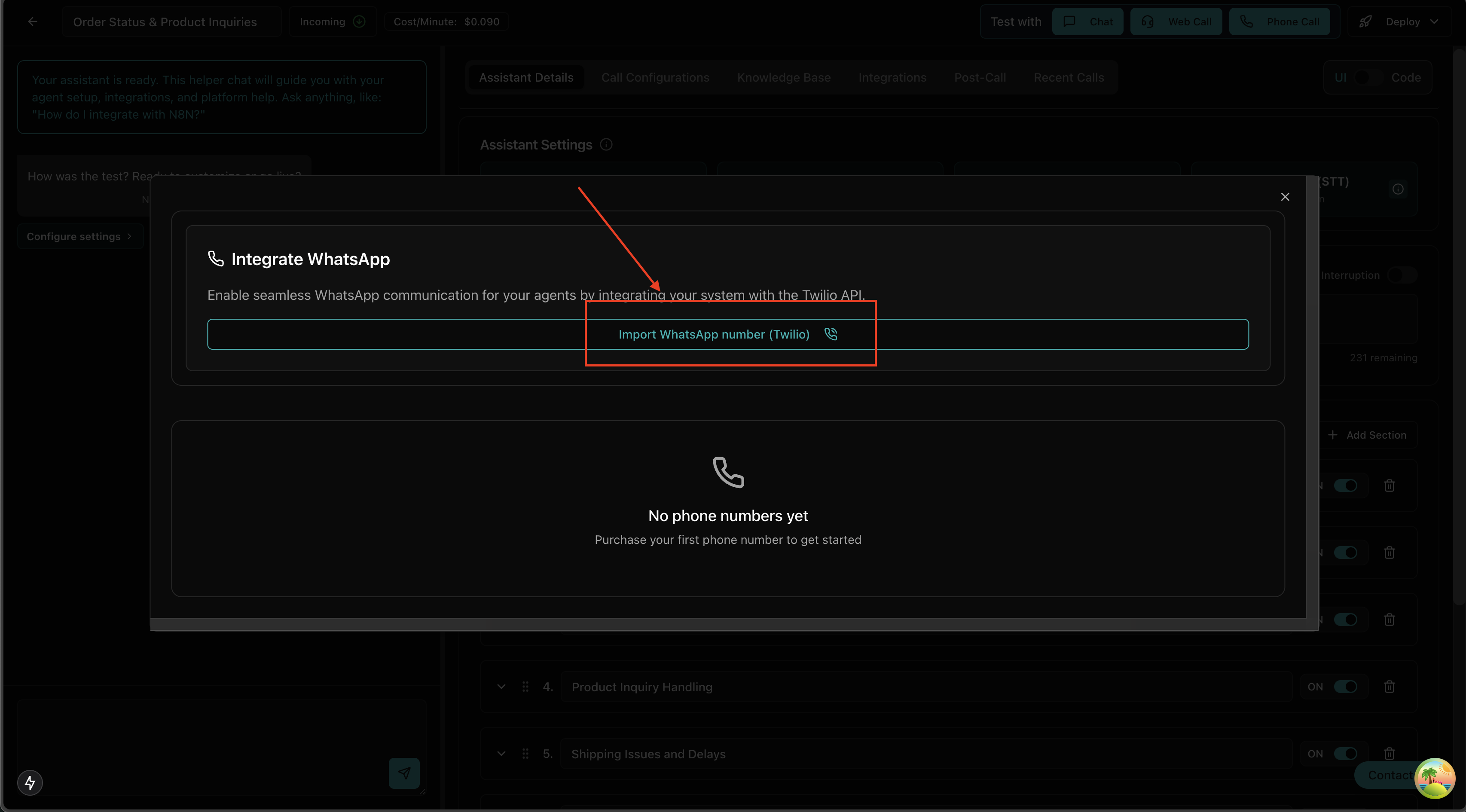
Import Number
Click on the 'Import WhatsApp number (twilio)' button on the Modal.
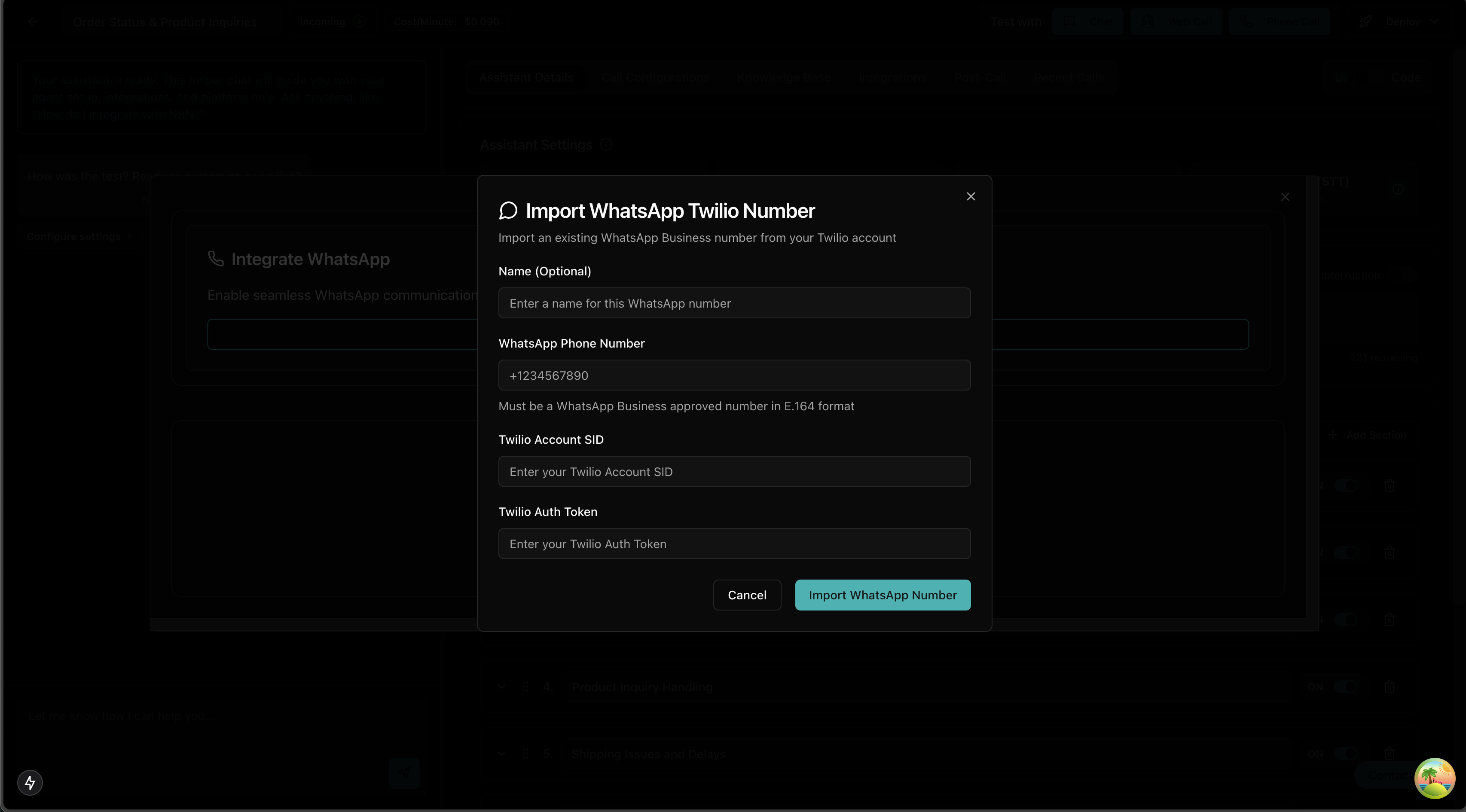
Provide Credentials
This will open a new WhatsApp Credential Modal. Provide your Twilio Credentials.
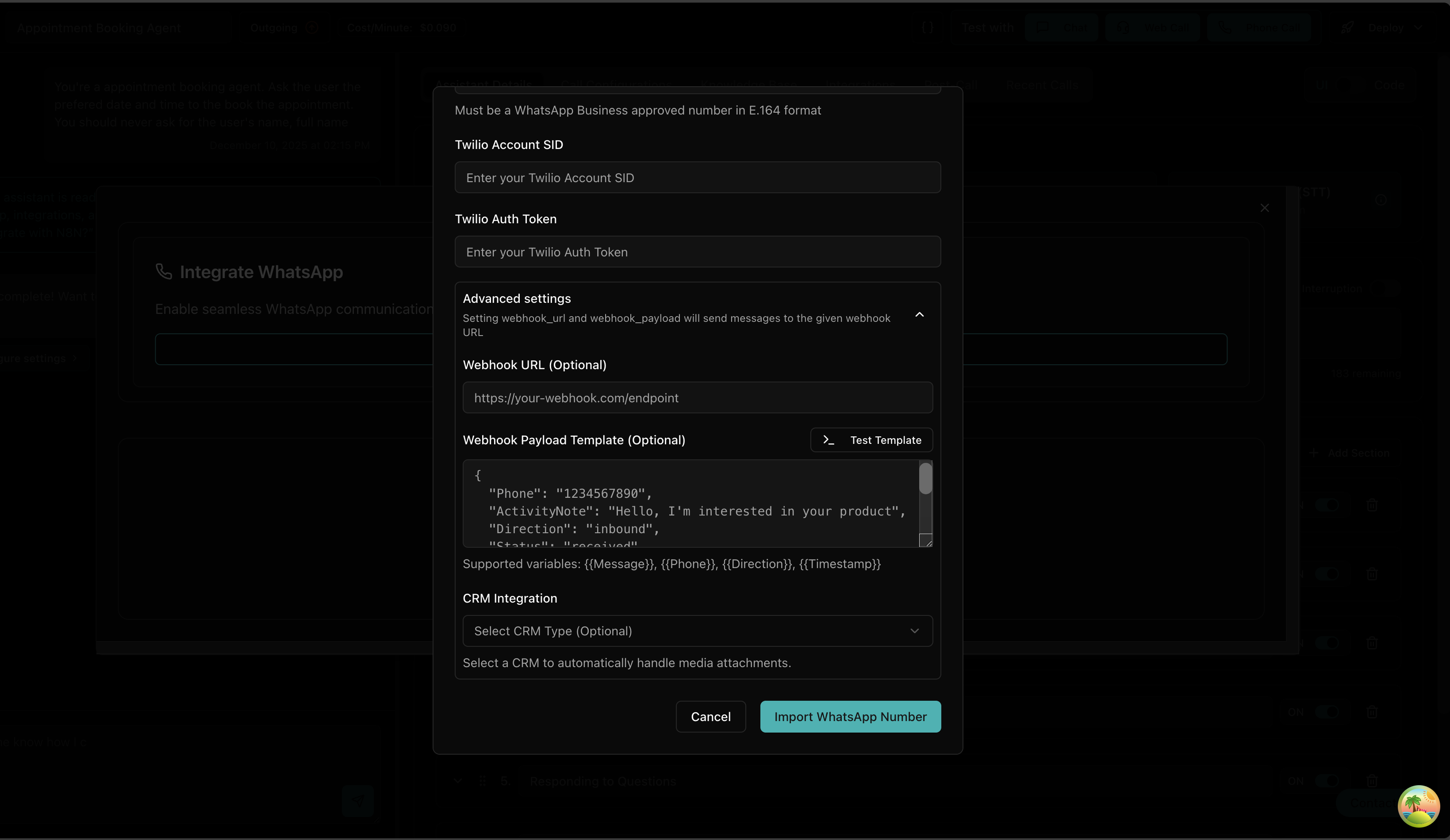
Configure Webhook (Optional)
Expand Advanced Settings to configure webhooks. This allows you to forward real-time WhatsApp messages to your server or CRM. You can specify the Webhook URL and customize the Payload Template.
{
          Phone: "1234567890",
          ActivityNote: "Hello, I'm interested in your product",
          Direction: "inbound",
          Status: "received",
          Message: "Hello, I'm interested in your product",
          Timestamp: new Date().toISOString(),
          IsCallRequest: false
}
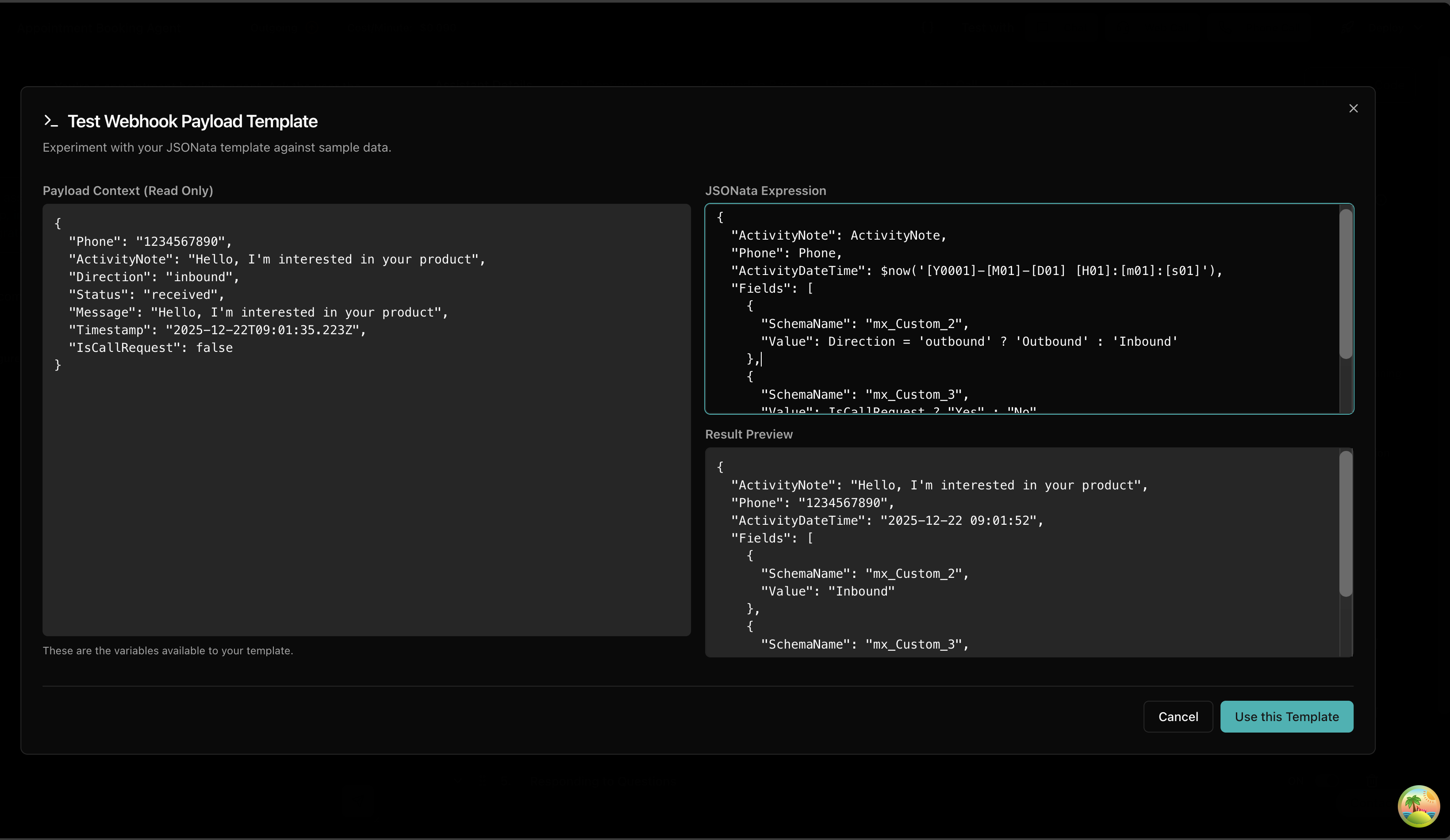
Preview & Test Payload
Click Test Template to open the interactive JSONata editor. This tool lets you:
- View available data variables (Context)
- Write complex JSONata transformations
- See the output result in real-time
Example (LeadSquared Integration):
{
  "ActivityNote": ActivityNote,
  "Phone": Phone,
  "ActivityDateTime": $now('[Y0001]-[M01]-[D01] [H01]:[m01]:[s01]'),
  "Fields": [
    {
      "SchemaName": "mx_Custom_2",
      "Value": Direction = 'outbound' ? 'Outbound' : 'Inbound'
    },
    {
      "SchemaName": "mx_Custom_3",
      "Value": IsCallRequest ? "Yes" : "No"
    }
  ]
}
Finish Import
Finally, click the 'Import WhatsApp Number' button to complete the process.
4. WhatsApp Integration for during call
This section will help you add a WhatsApp integration to your agents to send WhatsApp messages during a call.
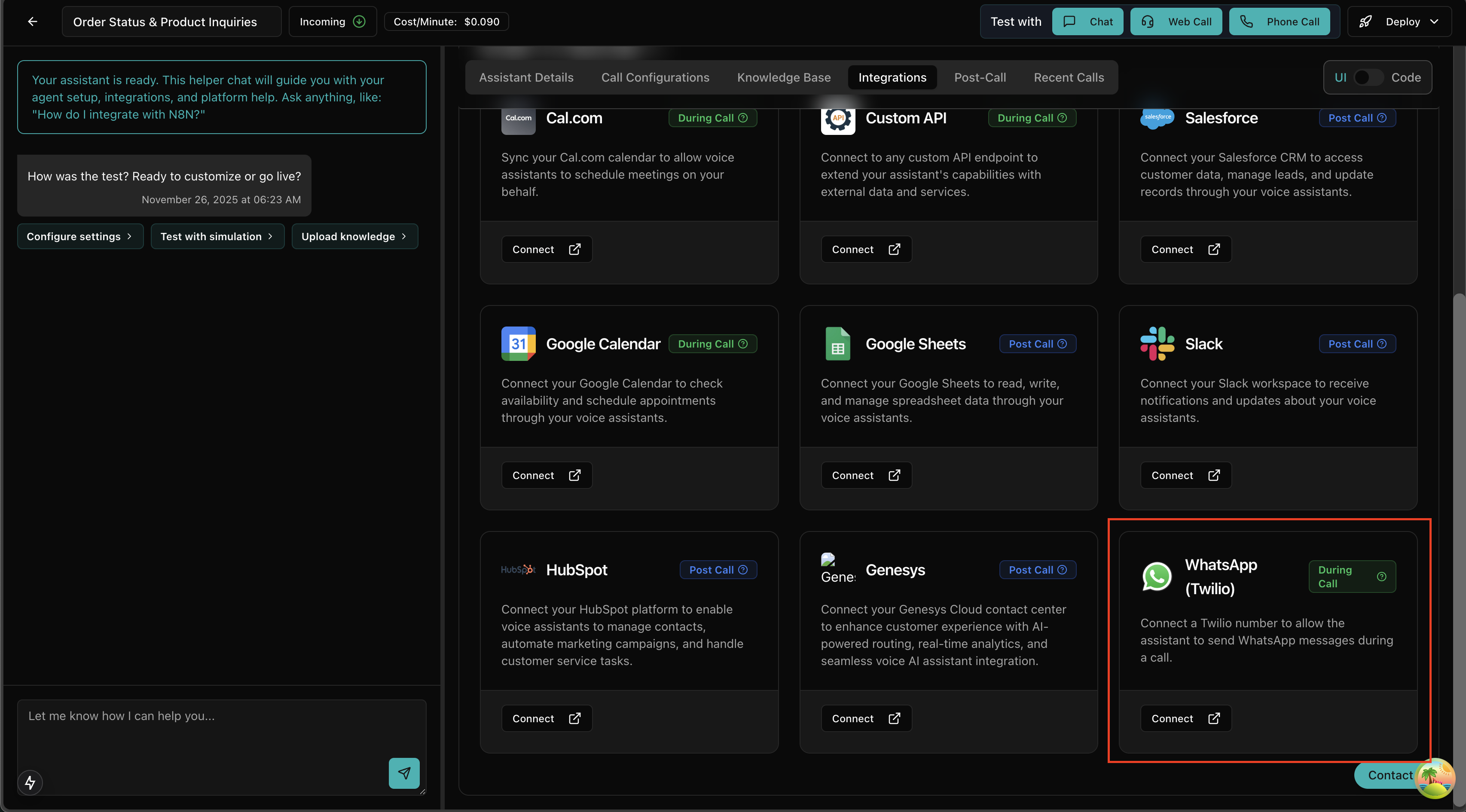
Select Integration
Go to the Integration tab and click on the WhatsApp Integration card.
Provide Credentials
The WhatsApp Modal will open. Provide your credentials here.
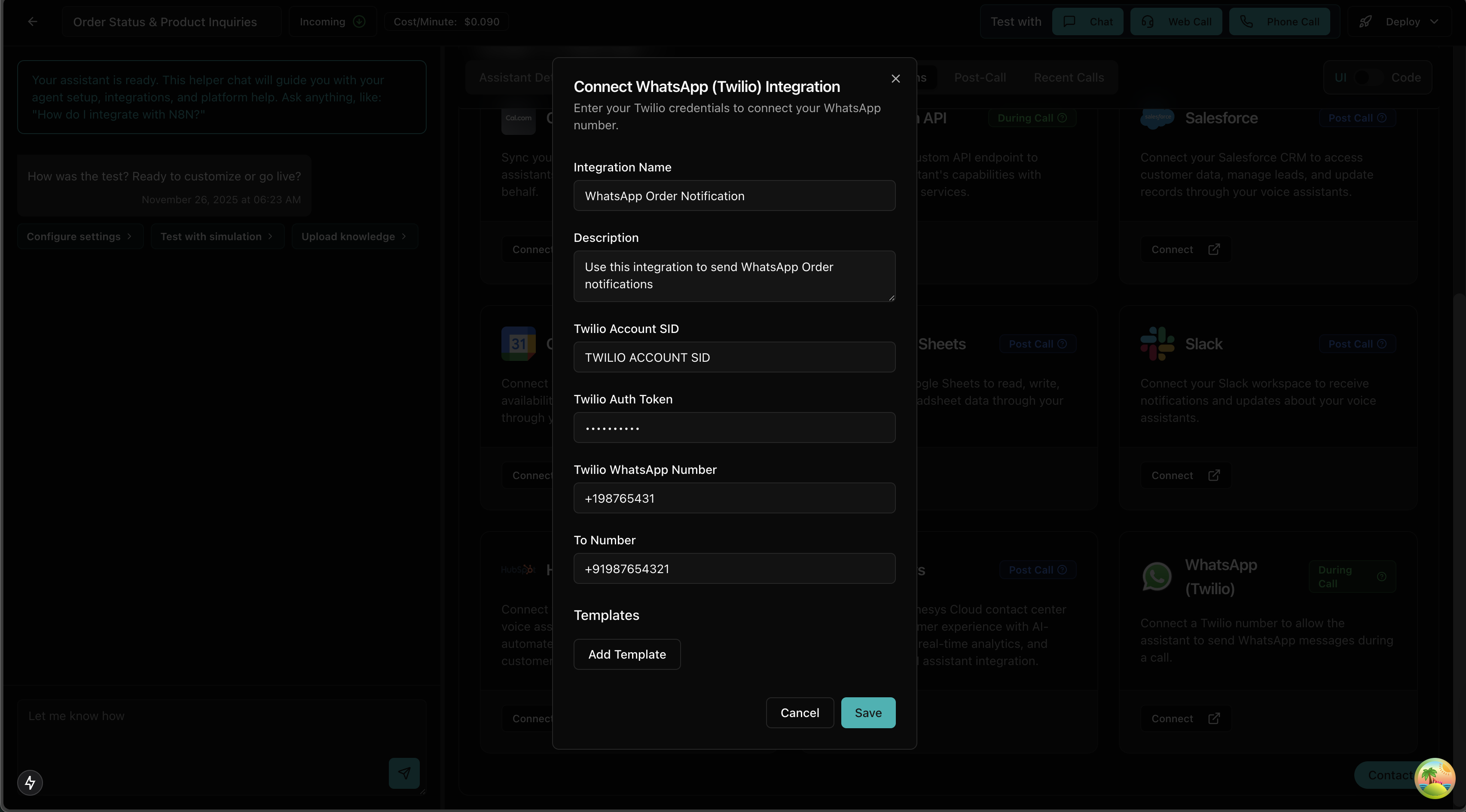
Add Templates
After providing credentials, click on the 'Add Template' button to add Meta-approved WhatsApp templates. You can add multiple templates.

Save
Finally, click 'Save' to complete the integration setup.
5. WhatsApp for Post call
This section will help you use the existing WhatsApp integration for post-call actions to send WhatsApp messages.
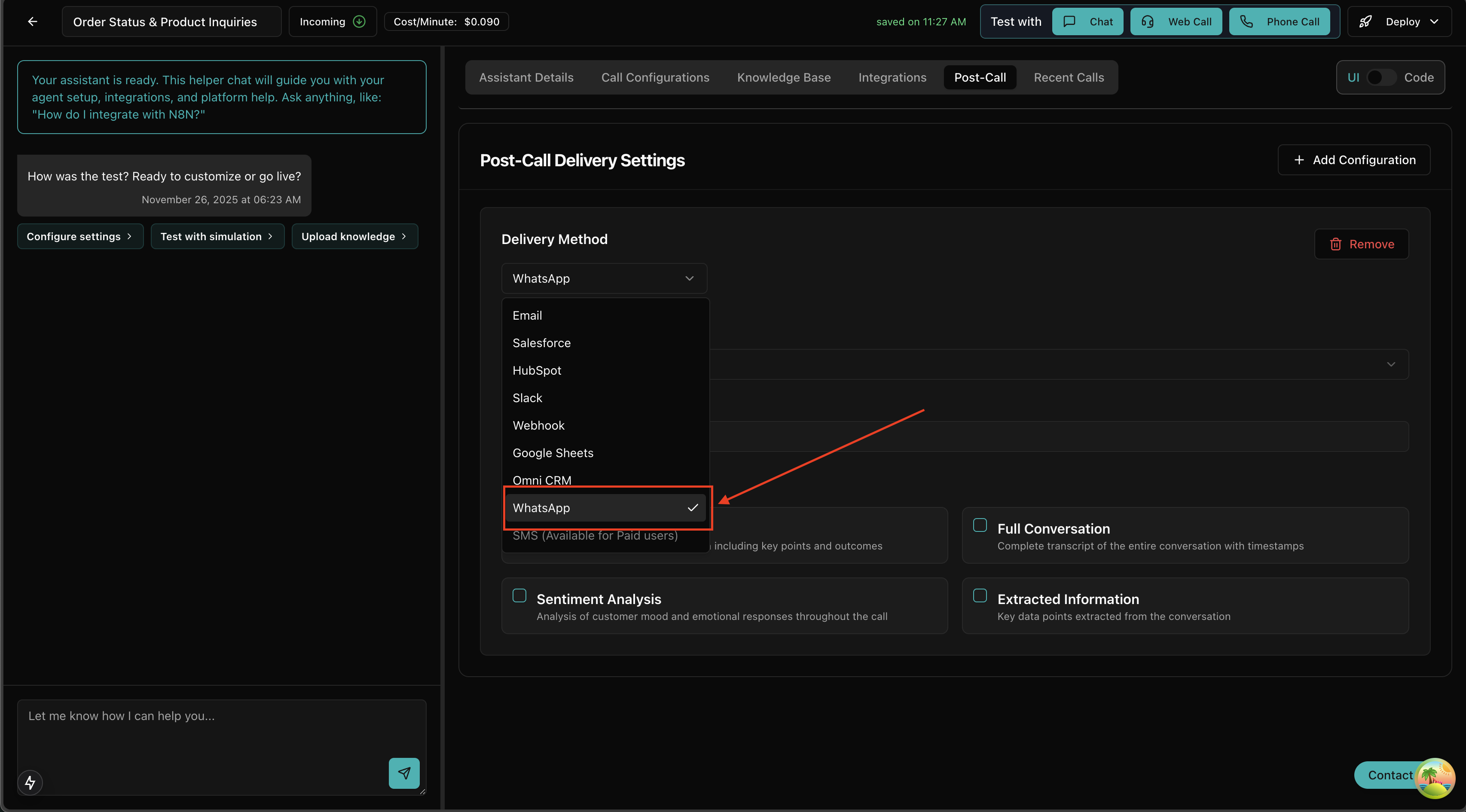
Select Delivery Method
Go to the Post-Call tab and select the Delivery method as 'WhatsApp'.
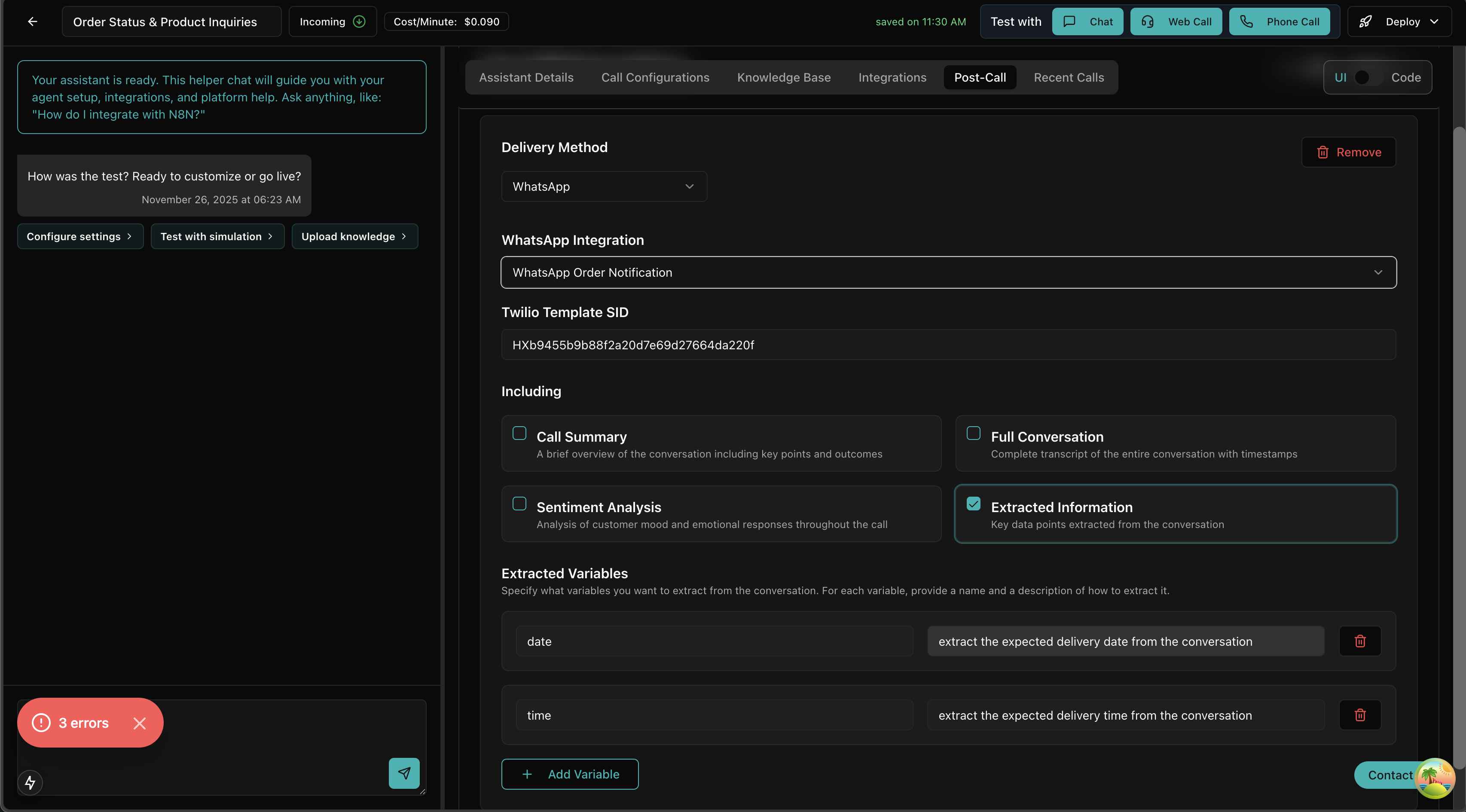
Configure Details
Configure the following settings:
- Select the existing WhatsApp integration.
- Provide the Template ID you want to use for the post call.
- Enable Extraction Information.
- Add variables to be extracted from the conversation and pass to the template as template schema.
6. FAQs
Video Tutorials
Coming Soon
We're working on video tutorials to make WhatsApp setup even easier. Stay tuned for step-by-step video guides!