
Slack Integration Guide
Enable Slack integration to send automated messages and notifications from your voice AI agent.
1. Overview
Slack integration allows your agent to send real-time messages and notifications directly to your Slack workspace. This can be used to alert your team, log events, or notify users within specific channels.
2. Key Benefits
- Send real-time alerts and updates to Slack
- Keep your team informed about user activity
- Trigger notifications based on agent interactions
3. Setup Option 1: From Main Dashboard
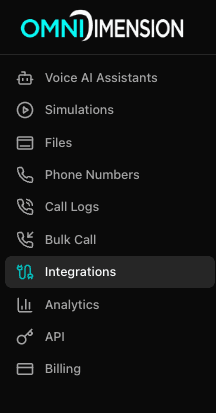
- Go to Integrations page in your dashboard
- Select the All Integrations tab
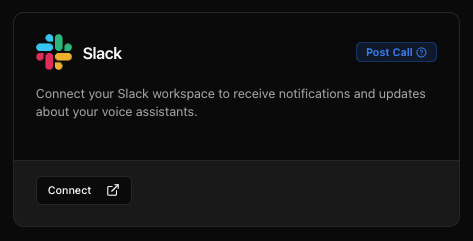
- Find the Slack card and click Connect
- Configure your integration (see configuration details below)
- Go to your agent's edit page → Integrations tab
- Attach the integration from the dropdown
Finding Slack integration in dashboard
Clicking Connect
4. Setup Option 2: From Agent Configuration
- Navigate to your agent's Integrations tab
- Find 'Slack' under the Connect New Integrations section
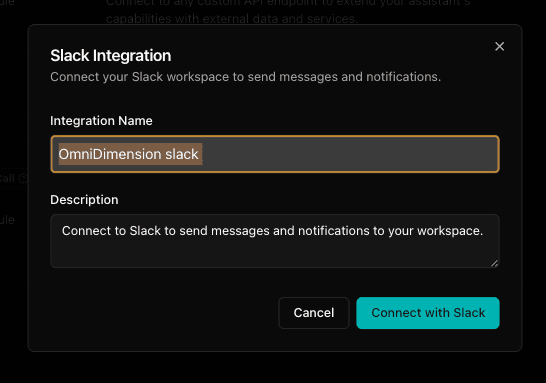
- Click on 'Connect with Slack'
- A modal will appear where you can enter integration name and description
- Click 'Connect with Slack' to authorize via OAuth and finalize integration
Connecting from agent edit page
4. Using With Your Agent
- You can trigger Slack messages when a specific user action occurs
- Send call summaries or event-based alerts
- Notify team members in specific Slack channels
5. Best Practices
- Name the integration clearly to identify its purpose
- Use dedicated Slack channels for different agents or event types
- Keep descriptions concise but meaningful for your team
- Test the Slack integration by simulating a user event