
Healthcare Appointment Booking Agent
Learn how to create and configure a voice AI agent specifically designed for healthcare appointment scheduling.
1. Write the Prompt
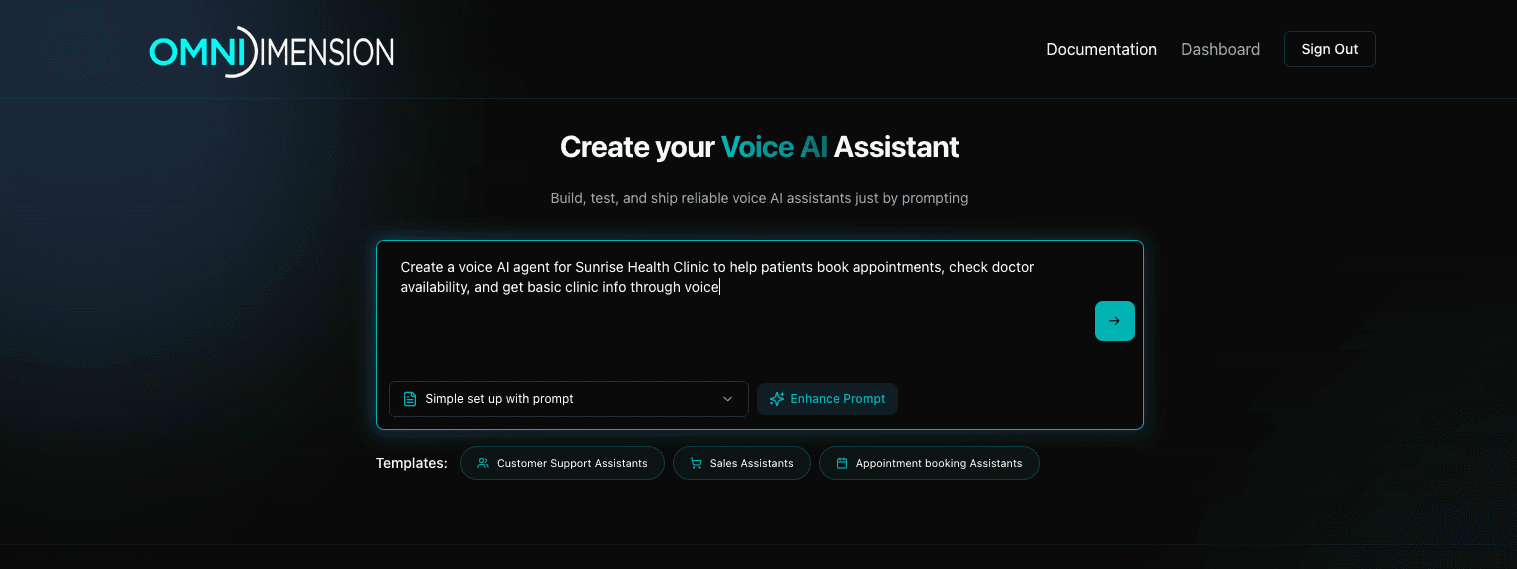
Start the setup by writing a clear initial prompt that defines the purpose of the bot.
Example Prompt : Create a voice AI agent for Sunrise Health Clinic to help patients book appointments, check doctor availability, and get basic clinic info through voice
2. Answer Clarifying Questions
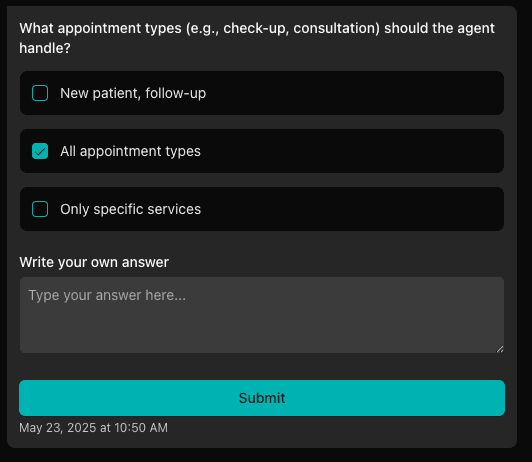
- The platform will prompt you with clarifying questions.
- Answer these precisely to help tailor the voice agent effectively for your specific use case
- You can select from provided options or Write your own custom answers if the options don't match your needs
3. Automatic Agent Creation
- The system uses your prompt and answers to auto-generate an initial version of the voice assistant.
- This includes Welcome message , basic conversational flow , collecting user's data or variable extraction in post call etc.
4. Review and Customize Agent Details
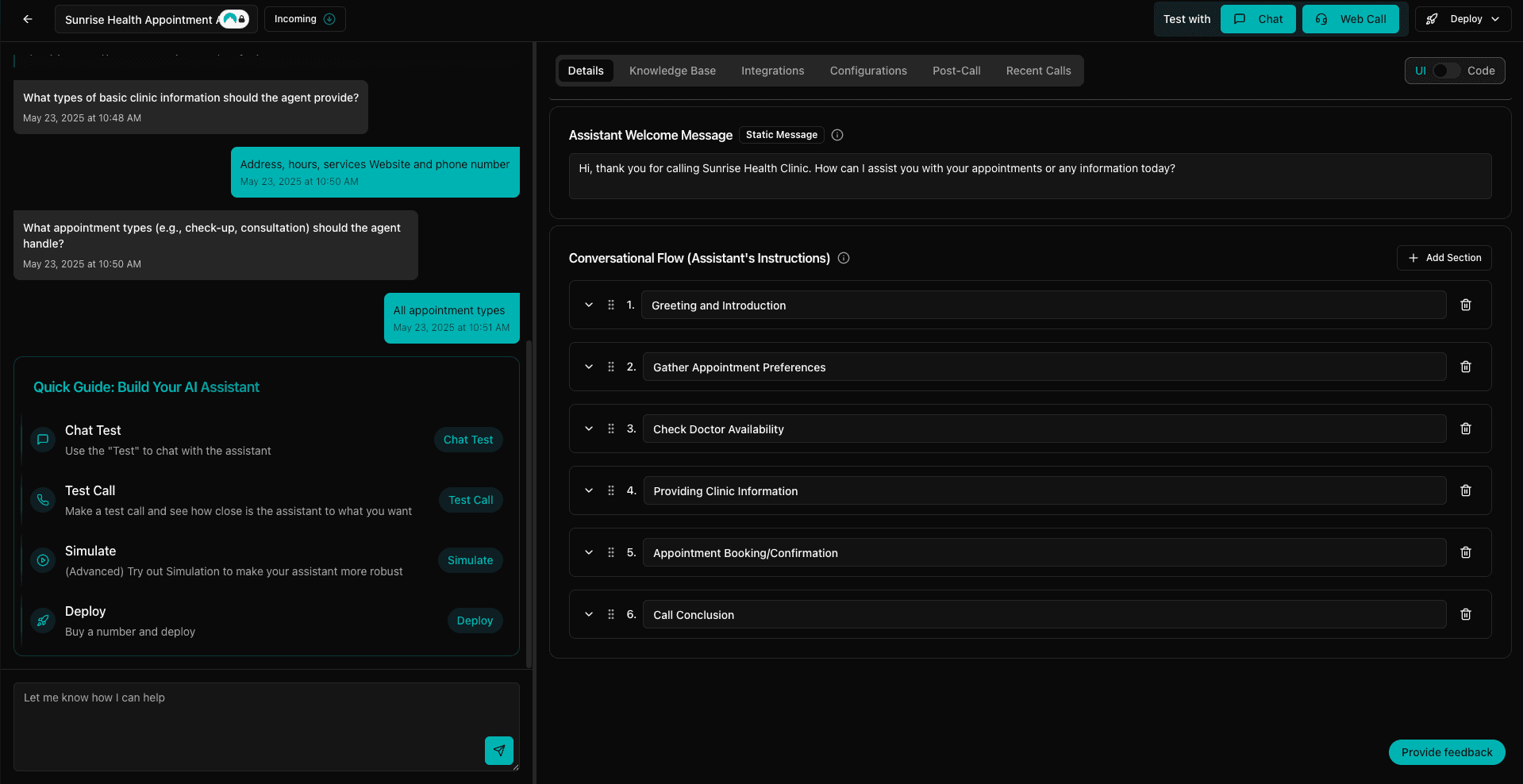
- Navigate to the Details section of the platform.
- You can edit Welcome Message. Ensure it is friendly and aligned with your brand voice.
- Review each step of the user journey (greeting, intent identification, slot filling, confirmation).
- Edit existing prompts or add new sections to better guide the conversation , edge cases or FAQs.

5. Testing the Agent
- Utilize the platform's testing tools present at the top right side of the window:
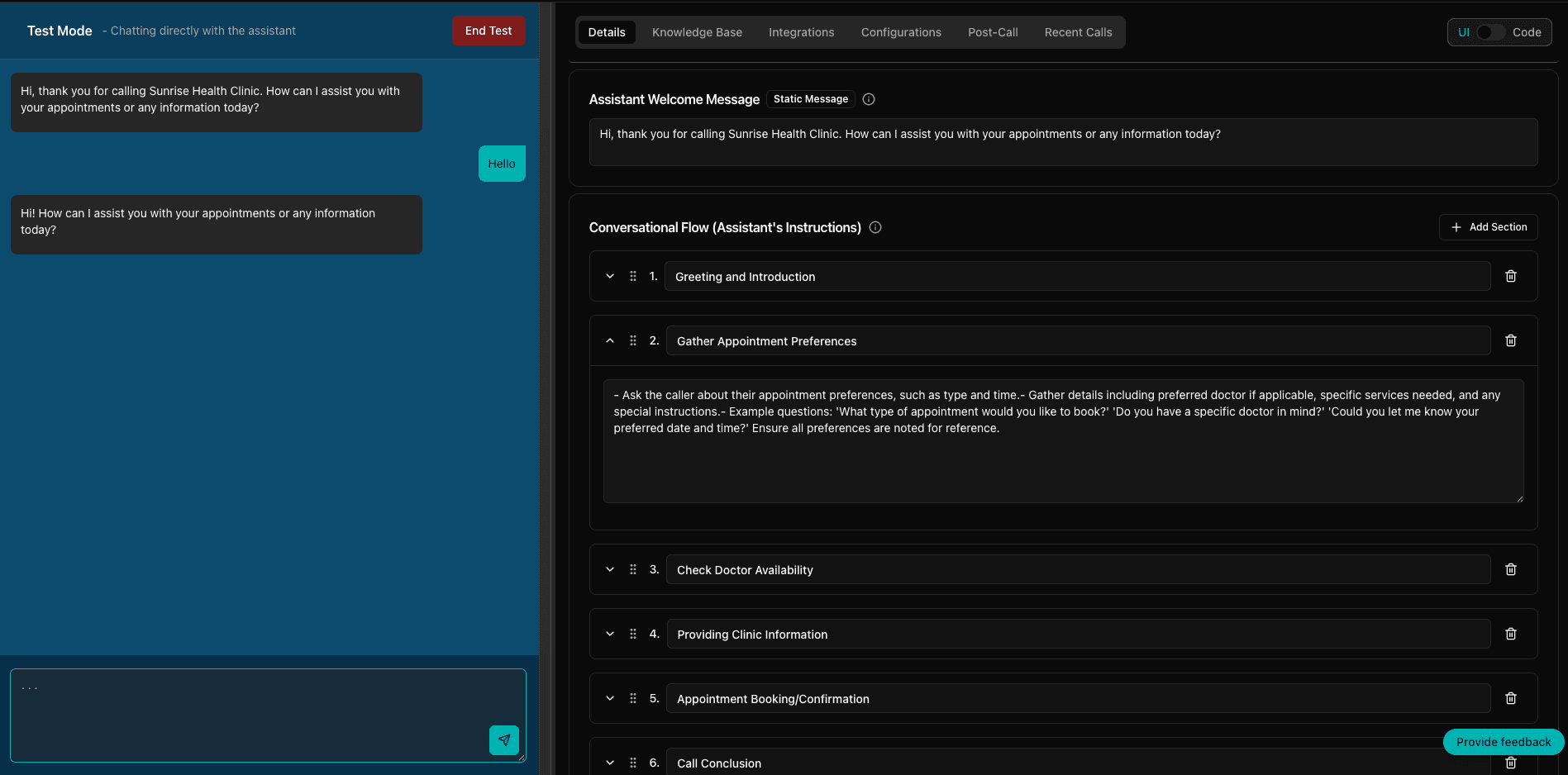
- Use the Chat interface for text-based interaction (Test With Chat)
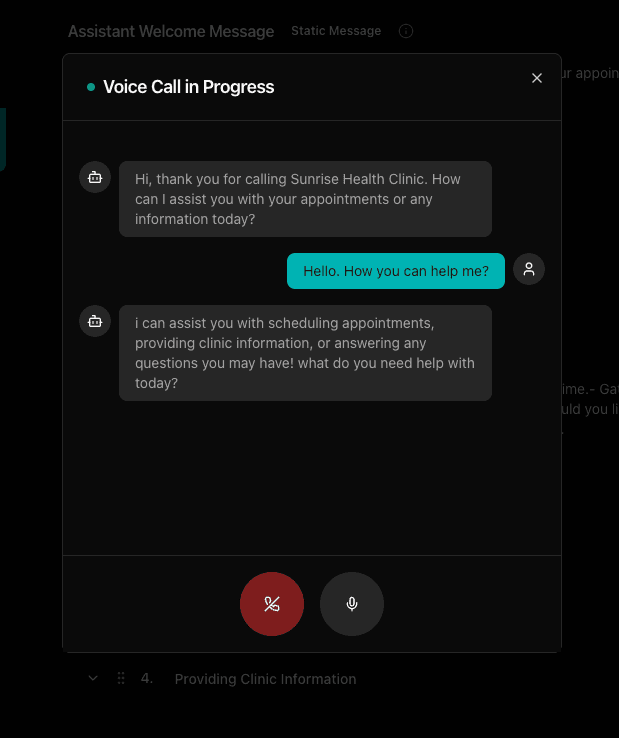
- Use the Web Call feature for voice-based testing (Test With Webcall)
Test with chat
Test with web call
6. Configuration Tab
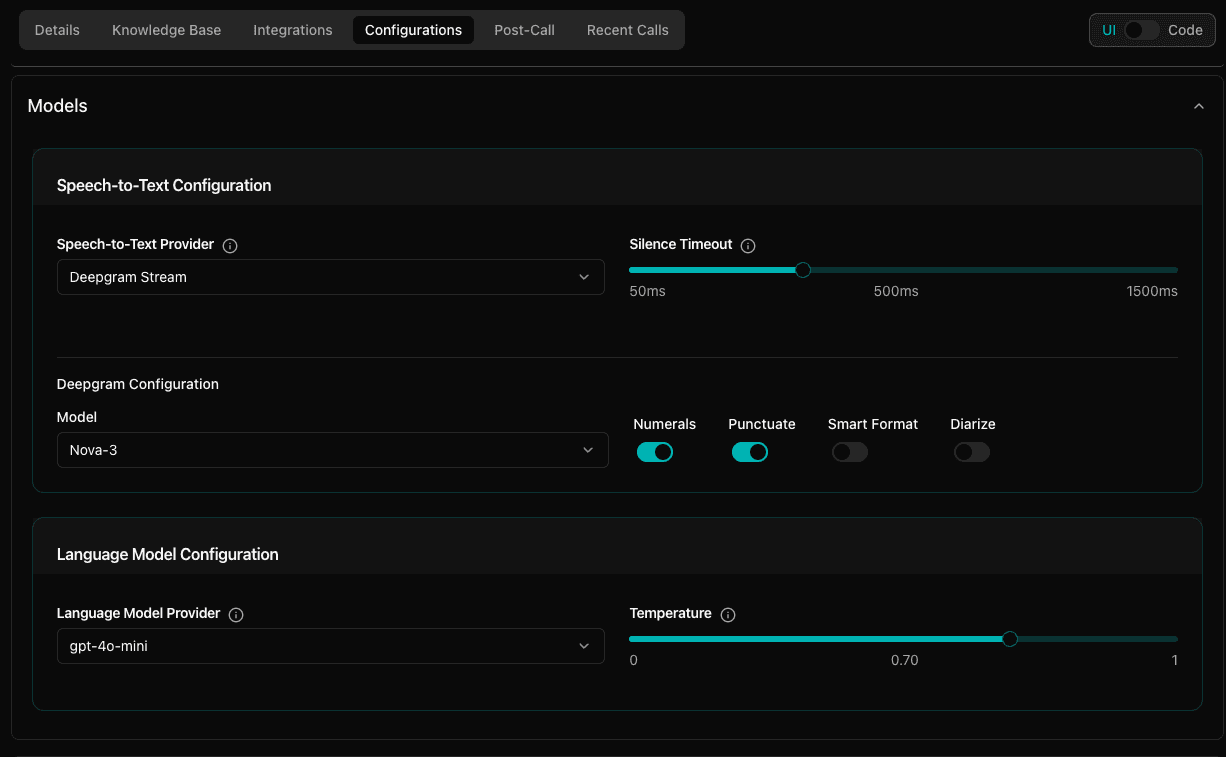
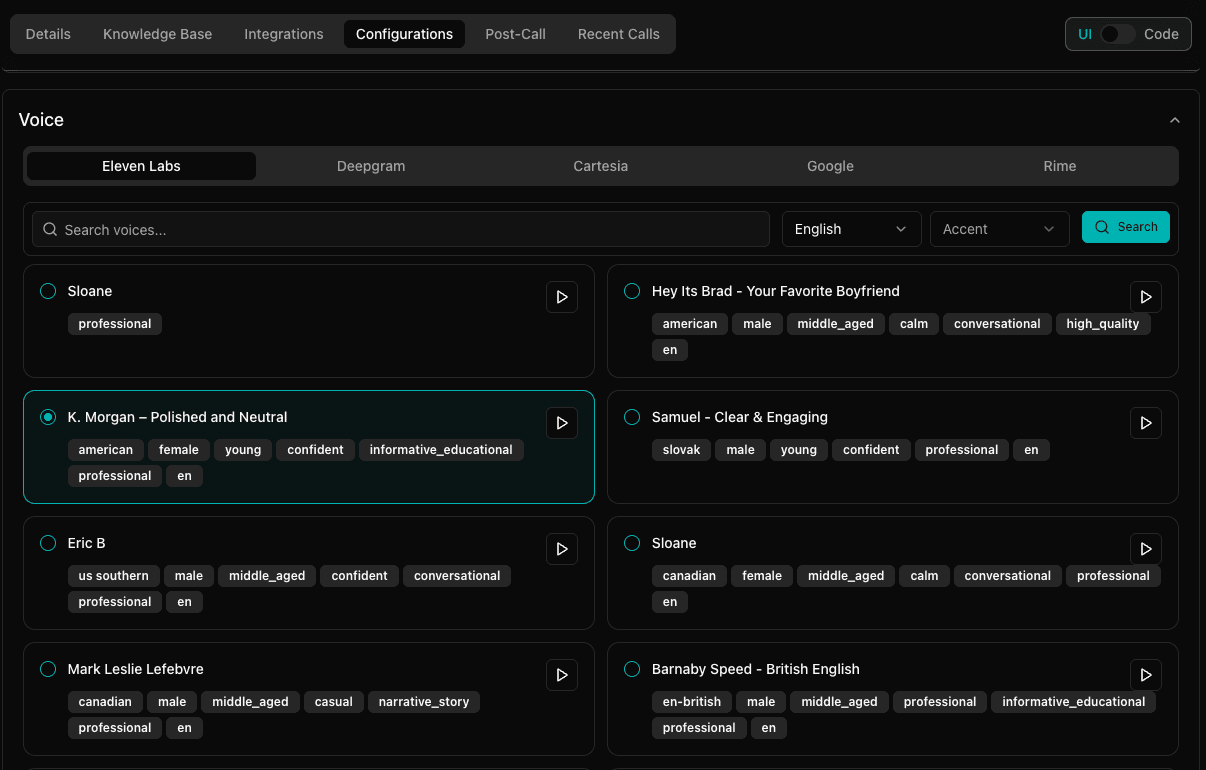
- In the "Configuration" tab you can edit or adjust agent configuration.
- Model: Select the desired LLM (Language Model).
- TTS : Configure TTS (Text-to-Speech) and choose appropriate voice settings.
- Adjust filler words and other behavior customization settings as needed.
Updating configuration settings (Model)
Updating configuration settings (Voice)
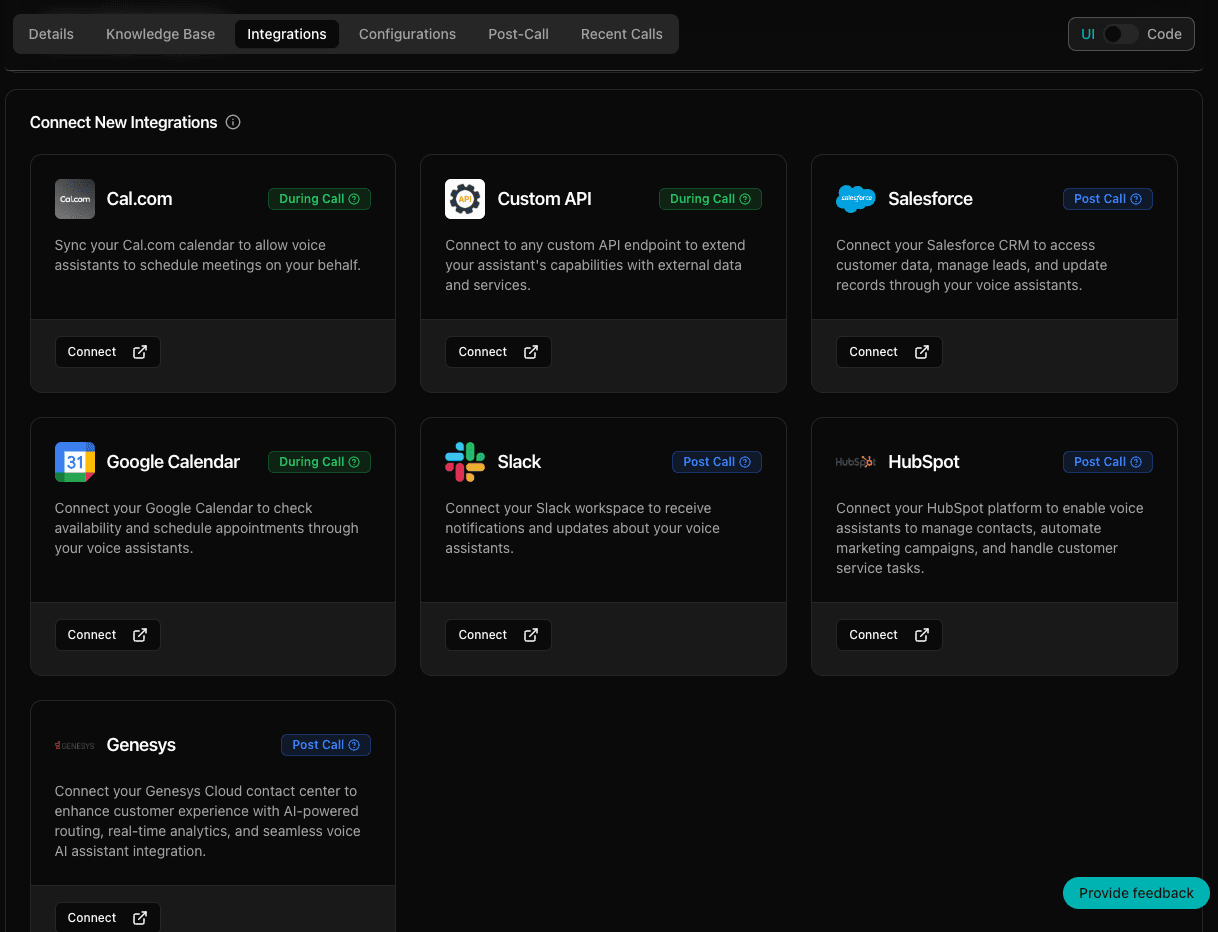
7. Calendar Integration
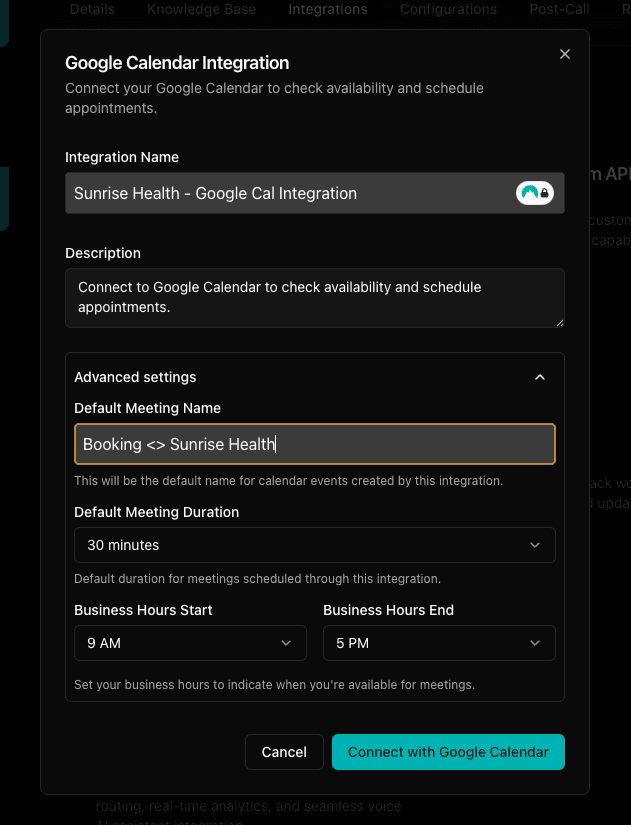
- Integrate with Google Calendar to enable automatic booking
- Open the Integrations tab.
- Click on Connect next to Google Calendar.
- Complete the OAuth flow to securely link your account.
- Once connected, the calendar will be automatically attached to the agent.
- The bot can check availability, book slots, and send invites.
Integration tab view
Adding Google Calendar Integration
Attach integration view

8. Knowledge Base
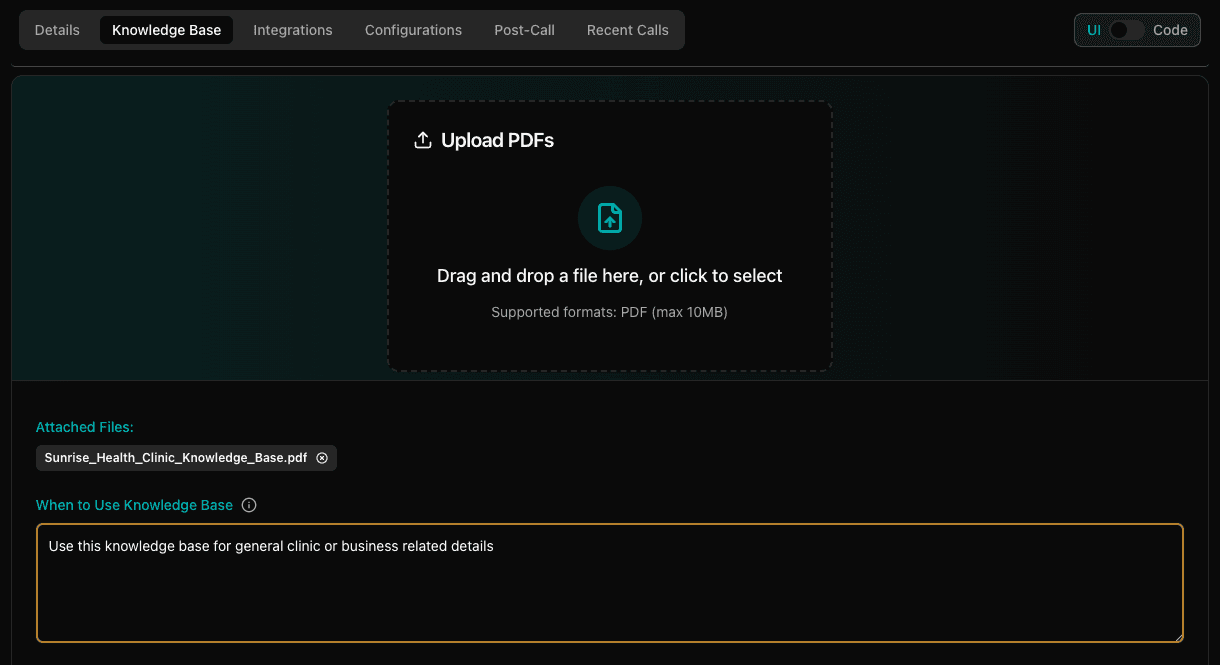
- You can add knowledge base to your bot to provide additional information.
- Navigate to the Knowledge Base section.
- Upload relevant documents (e.g., PDFs with clinic policies, service descriptions).
- Documents are auto-attached to the bot.
- You can also set rules for when and why the knowledge base should be utilized.
9. Post-Call Actions
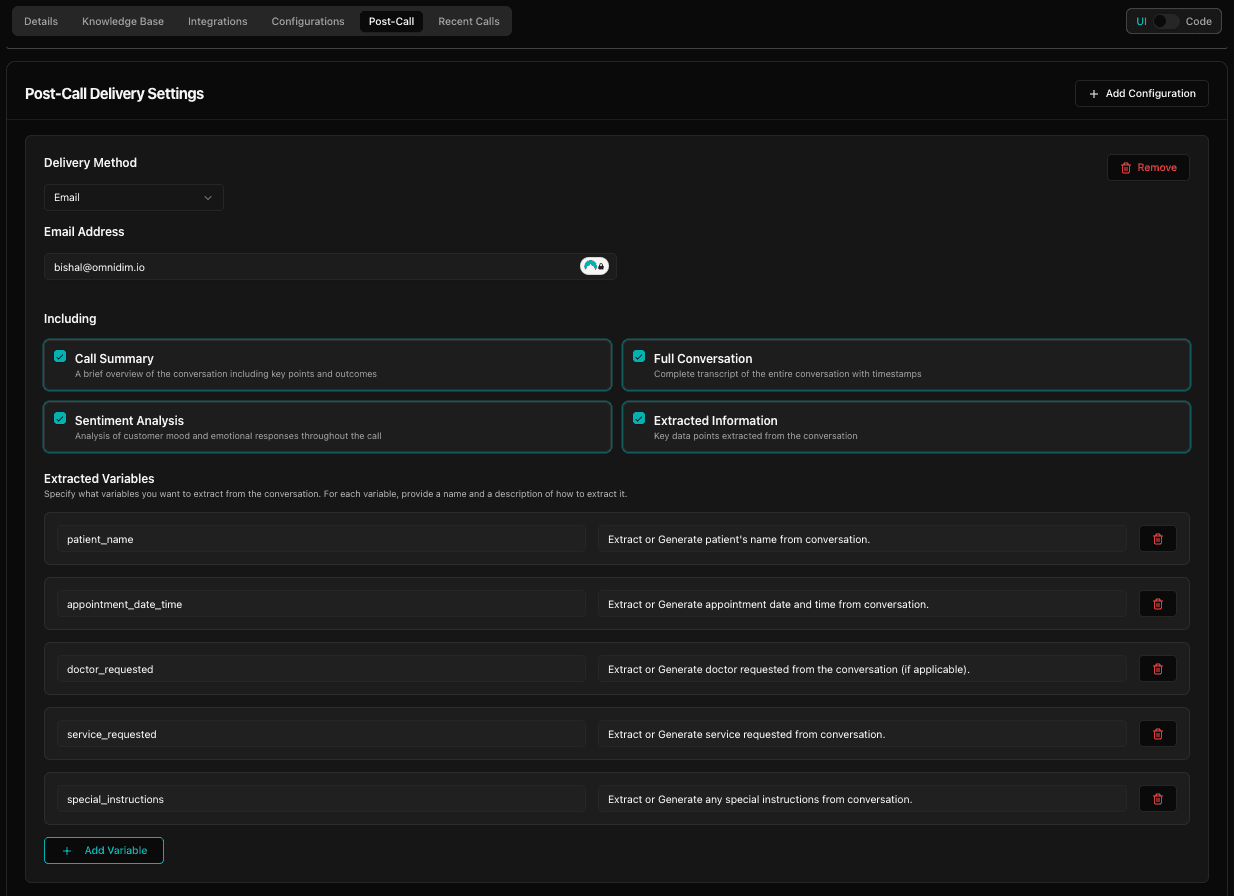
- You can set up what happens after the call is completed.
- Go to the Post Call section.
- Select Email Delivery as a post-call action.
- Enter the recipient's email address.
- Choose what to include in the email such as Call summary , Full transcript , Sentiment analysis , Variable extraction etc.
10. Final Testing & Monitoring
- Re-test the agent again via chat and web call to confirm all functionalities operate as expected.
- Validate booking flow, fallback responses, and knowledge base retrieval etc and Update the agent based on the requirements.
- Navigate to the Call Logs section to monitor call interactions with evaluation details.
